5 Decision Builder Best Practices to follow
After implementing many data driven business processes with Decision Tables in ServiceNow, I want to share my personal best practices on how to leverage Decision Builder. The goal is to help others save a lot of time and avoid making the same mistakes.
Disclaimer: The recommendations are based on my personal experiences and are not official ServiceNow best practices. I am happy to discuss the mentioned points with you in the comments and learn about your personal best practices.
1. Avoid Hard Coded Inputs & Outputs
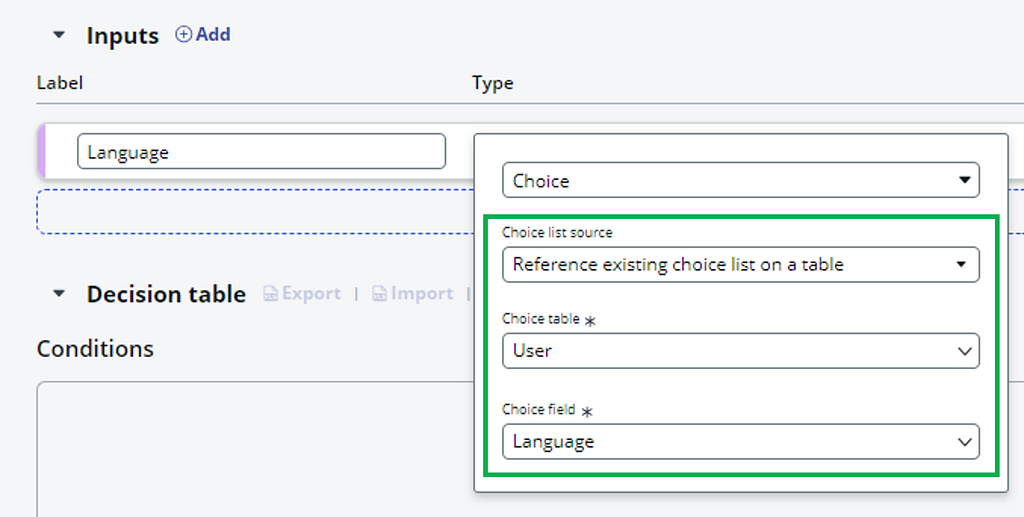
Keep your configuration clean and maintainable with a simple rule: “Don’t Repeat Yourself” (DRY). This means avoiding any duplication of code or in this case choices. Therefore, when you’re setting up inputs or outputs of your decision tables always link back to an existing table or choice field instead of creating choices from scratch. This not only saves time but also ensures consistency across your ServiceNow environment. Let’s break it down with a simple example.
Bad Practice: Re-creating the available user languages as choices as a decision table input.
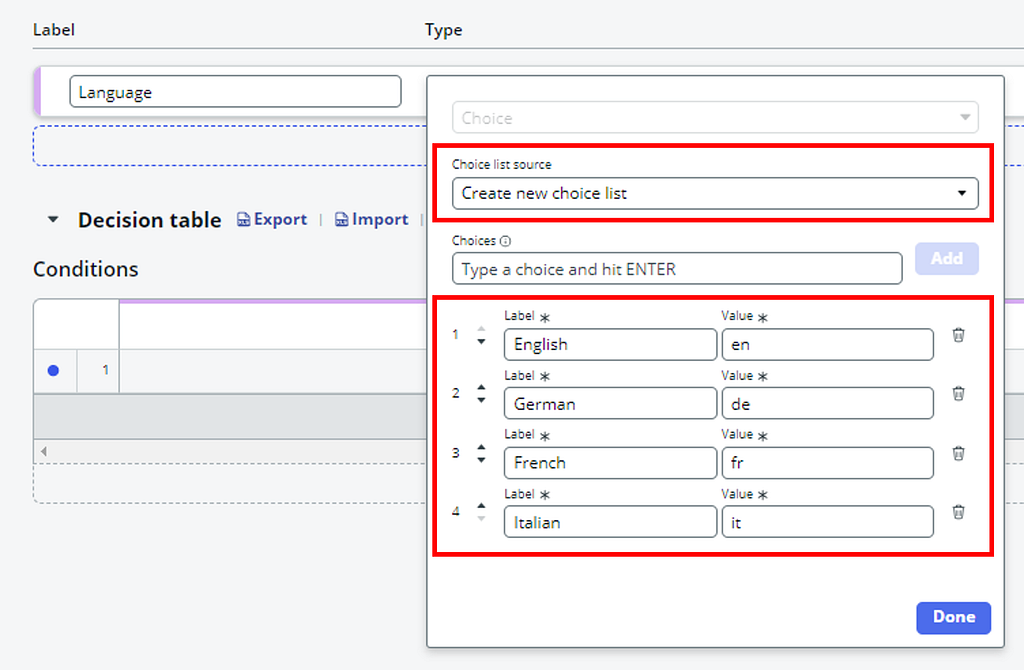
Good Practice: Referencing the “Language” choice field from the user table.
2. Leverage Excel Export & Import
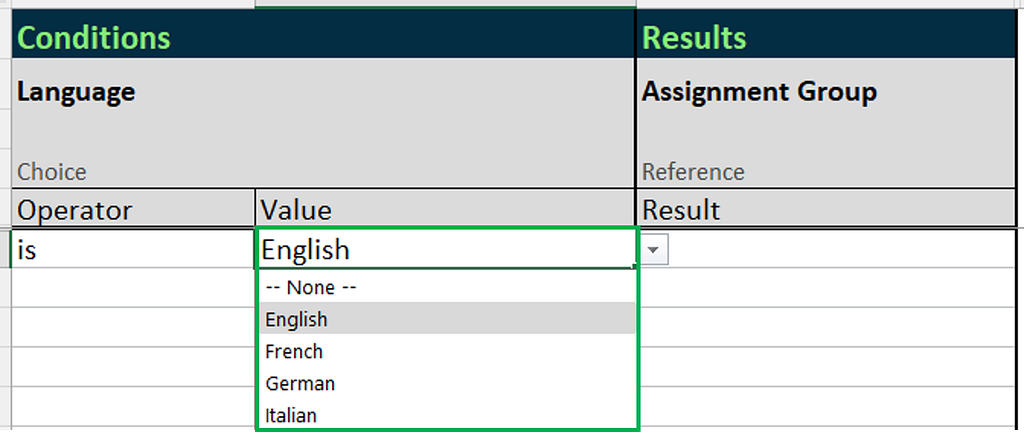
When implementing business logic, it’s smart to involve the experts — those who know the process inside out. Simply export your decision table to Excel, let the process owner fill in the necessary details, and then import it back. The best part? The created Excel automatically checks the inputs, ensuring that only available choices can be selected. This collaborative approach simplifies the process and makes your life a bit easier. Take a look at the screenshot below to see how ServiceNow automatically turns your decision table into a user-friendly Excel template.
Example: The exported Excel template restricts users to only valid Language Input options.

3. Test Smart not Hard
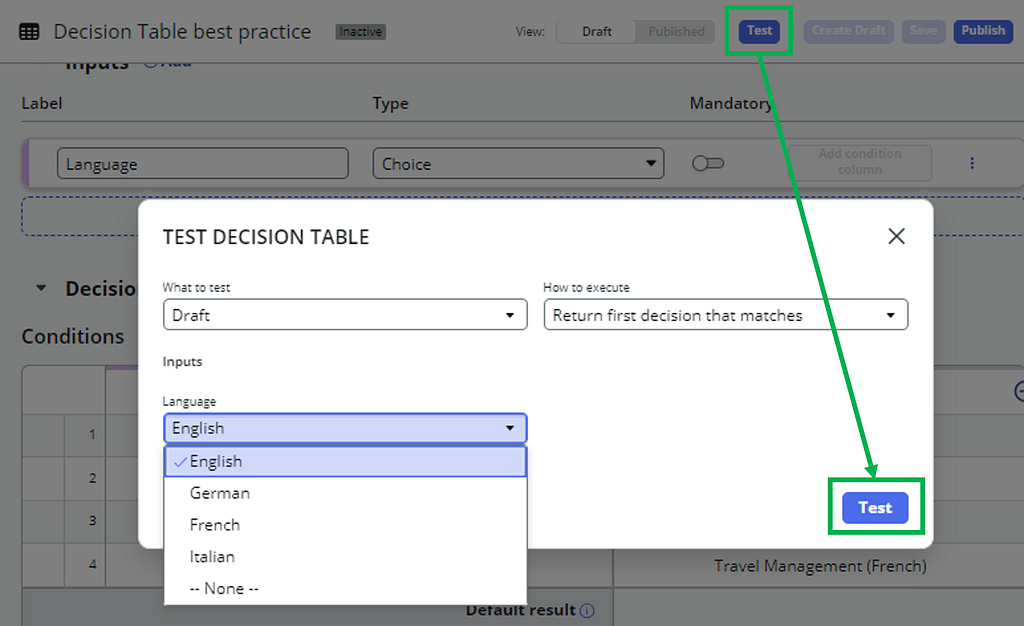
The Decision Builder Editor, much like Flow Designer, allows you to test your decision table on its own. This feature follows Component-Based Design principles, enabling you to test your business logic separately from the code. Therefore, make it a habit to extensively test your Decision Table first, ensuring everything runs smoothly. Only then, move on to the end-to-end flow tests. This targeted approach not only saves time but also streamlines your debugging process.
Example: Begin by unit testing the Decision Table, followed by comprehensive Flow testing.
4. Use Decision Tables outside of Flow Designer as well
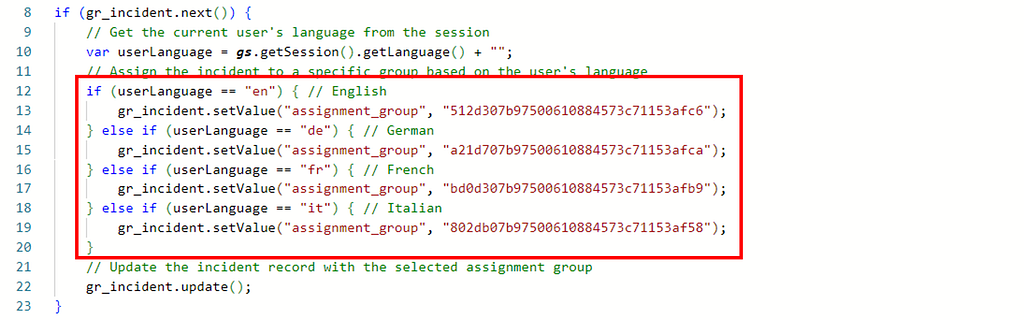
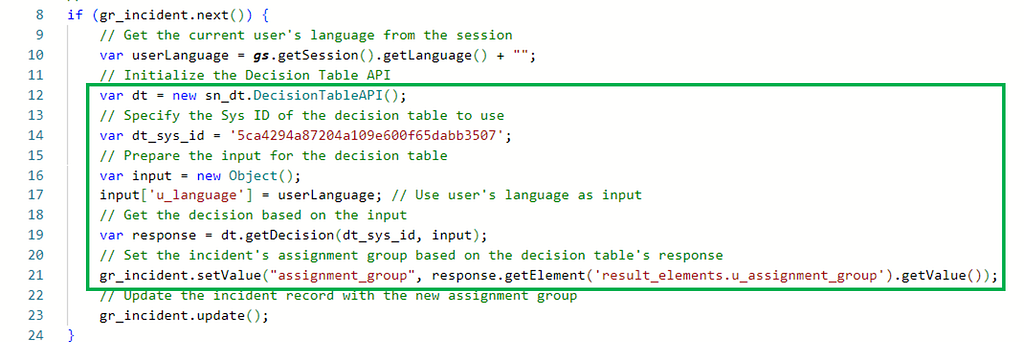
Leverage the power of Decision Tables not just in Flow Designer but also in your ServiceNow scripts through Decision Table API. Staying true to the “Don’t Repeat Yourself” (DRY) principle, aim to use a single Decision Table for both your flows and scripts to avoid duplicating logic and enhance maintainability. My personal mantra? Whenever I’m tempted to hard code a sys ID or craft an ‘if-else’ branch, I pause and consider: Could this be a Decision Table? Up next, I will show you two examples demonstrating how to swap out hard-coded script logic with a Decision Table solution.
Bad Practice: Hard coded if/else logic in a script to set an assignment group based on user language.
Good Practice: Setting the assignment group in a generic way based on the previously created Decision Table.
5. Don’t forget to save your work
Finally, always remember to regularly click the “save” button in the Decision Builder to secure your work. I can’t count the times I’ve lost progress by accidentally refreshing or closing the tab.