Cheat Sheet: Mastering ServiceNow Cloning Configurations
Setting up a cloning profile in ServiceNow can be complex, especially when deciding which tables to exclude or preserve to meet your specific goals. Certain combinations of excluding and preserving tables can even lead to unexpected outcomes, such as deleting all records in a specific table. In this article, I present a practical ‘cheat sheet’ to help you understand and effectively manage your cloning profile settings.
Cloning Terminology:
Understanding the cheat sheet requires familiarity with several key terms and concepts:
Source Instance: This is the ServiceNow environment from which data and configurations are copied. Typically, this is the production instance where the clone profile is set up.
Target Instance: This is the ServiceNow environment where the data and configurations from the source instance are replicated.
Preserve a Table: This configuration ensures that data within a specified table in the target instance remains unchanged during the cloning process. It’s commonly used to maintain essential operational or configurational data that is critical to the target environment. Learn how to create a new clone preserver.
Exclude a Table: This setting prevents data from a specific table in the source instance from being copied to the target instance. It is often used to protect sensitive data or prevent the duplication of unnecessary information. Learn how to exclude a table from cloning.
Cheat Sheet Explained:
In your ServiceNow cloning profile, you have the option to either exclude or preserve each table, leading to varying outcomes based on your choices. For example, certain settings can result in an empty table in the target instance. Let’s explore each potential scenario in detail:
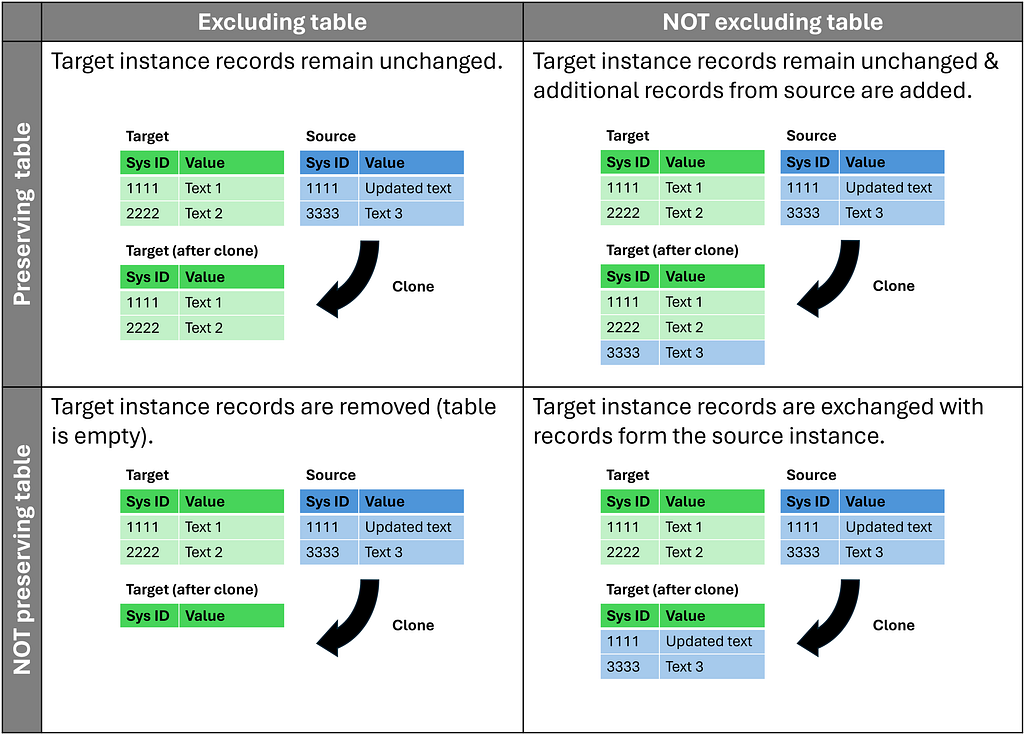
Scenario 1: Table Excluded and Preserved:
When a table is both excluded and preserved, no changes occur to its records in the target instance as a result of the clone. This setup results in the preservation of all existing records on the target table — these are neither updated nor overwritten — and exclusion of all records from the source table, meaning none are copied over.
Scenario 2: Table Not Excluded but Preserved:
Here, the existing records in the target instance are maintained without any updates, while additional records from the source instance are added. The preservation setting overrides the exclusion setting, ensuring that any matching records based on unique identifiers (Sys ID) remain as they were in the target instance. For example, a record with Sys ID “1111” retains its value of “Text 1” in the target instance despite being “updated text” in the source instance.
Scenario 3: Table Excluded but Not Preserved:
In this scenario, all existing records in the target instance are removed, leaving the table empty post-clone. This outcome usually arises unintentionally, leading to confusion. The lack of preservation means all target instance records are cleared, and because the table is also excluded, no new records are added from the source instance.
Scenario 4: Table Not Excluded and Not Preserved:
For this configuration, all records in the target instance are replaced by those from the source instance. Initially, all records in the target instance are removed since they are not preserved, followed by the addition of all records from the source instance, which are not excluded.
With the cheat sheet, you can now easily pick the right settings to get the results you want or check if your current settings are leading to your desired outcomes.
Did You Know?
ServiceNow has recently released a new streamlined user experience for cloning which also provides additional explanations and help when configuring your cloning profiles. You can download/get the new Clone Admin Console on the ServiceNow App Store.